
Manav Sampada: Which State Portal, Login and Leave
What Manav Sampada is, and who runs it
In short: Manav Sampada is the eHRMS, an online HR system for state government employees, built by NIC Himachal Pradesh. Each state runs its own copy, so log in on your state's site, not another's.
Most people searching this want to log in and get on with a leave request. If you are also a salaried government employee planning a home loan, the same records matter later. If you want to see which lenders would take your profile before you apply anywhere, the eligibility check shows offers from 40+ lenders in about 2 minutes without a hard inquiry. Butter Money is not a lender, and it has no part in your service record.
Here is what went wrong while I wrote this. I tried to open the state portals and the official help files, and most of them failed with certificate or connection errors on my side. That could be my tools. So I could read NIC's own About page, and one guide to the UP portal, and nothing else. Where I could not confirm a step, I say so. Trust your own screen over my wording.
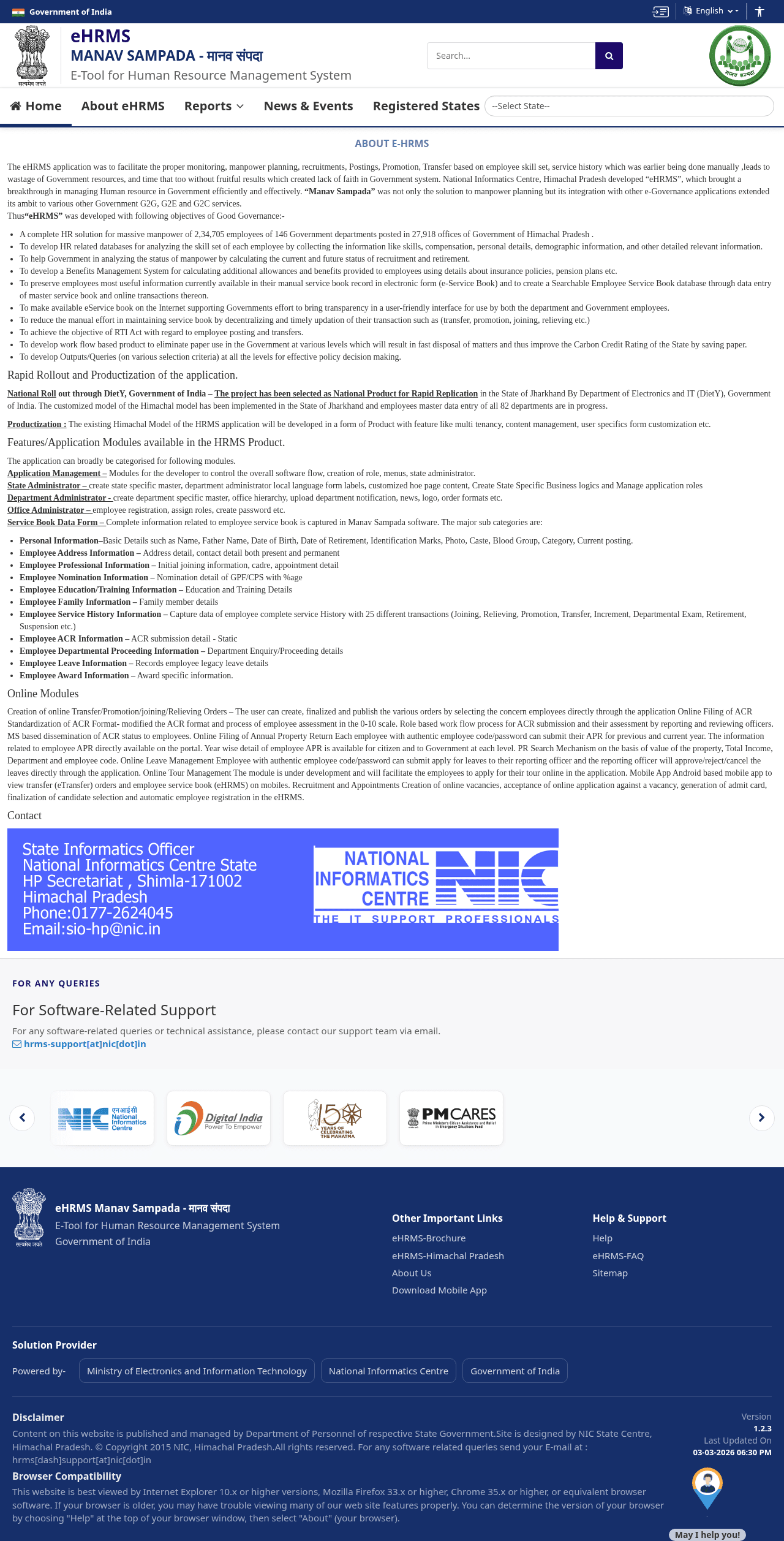
NIC's page says the Himachal Pradesh centre developed it, and that a customised version runs in Jharkhand. It lists other states under "Registered States", including Assam, Bihar, Goa, Gujarat, Punjab, Telangana and Uttar Pradesh. It does not say how actively each one uses it. I found counts of departments and employees on finance blogs, but they disagree with each other, so I have left them out.
Which portal for which state
What I could confirm for each state, and what I couldn't
| State | Address I could confirm | What to do |
|---|---|---|
| Uttar Pradesh | ehrms.upsdc.gov.in, from a UP portal guide (November 2020) | Use the "eHRMS Login" link on that page |
| Himachal Pradesh, Jharkhand and others | Listed by NIC at ehrms.nic.in, but I could not confirm each state's own login address | Ask your DDO or establishment section for the exact address |
Source: NIC eHRMS, Freshersnow, read 2026-11-09
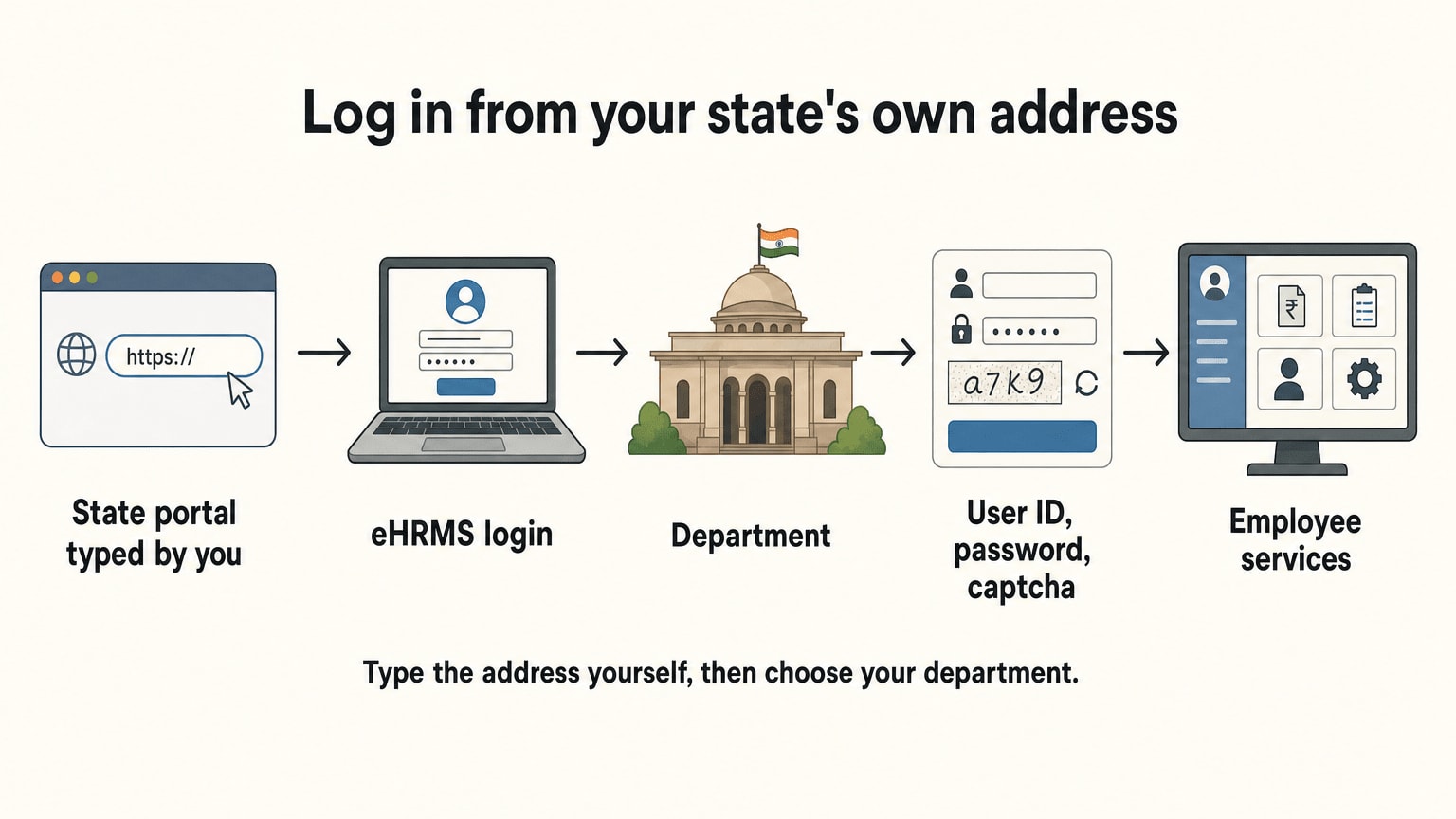
A directory of every state's address would be more useful than that table. I couldn't build one I could stand behind, so I won't guess at a URL. Type the address yourself, and don't enter a password on a page you reached through a search result.
How to log in
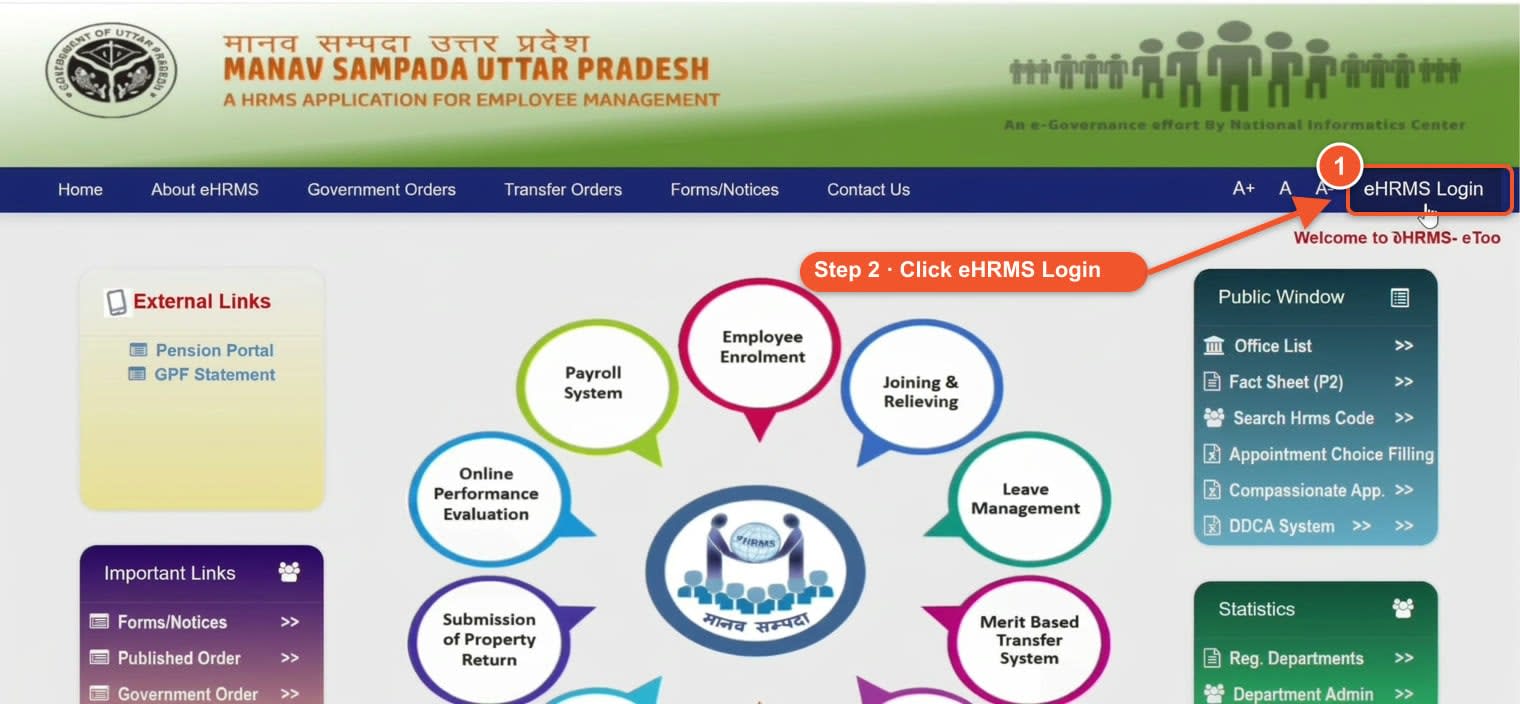
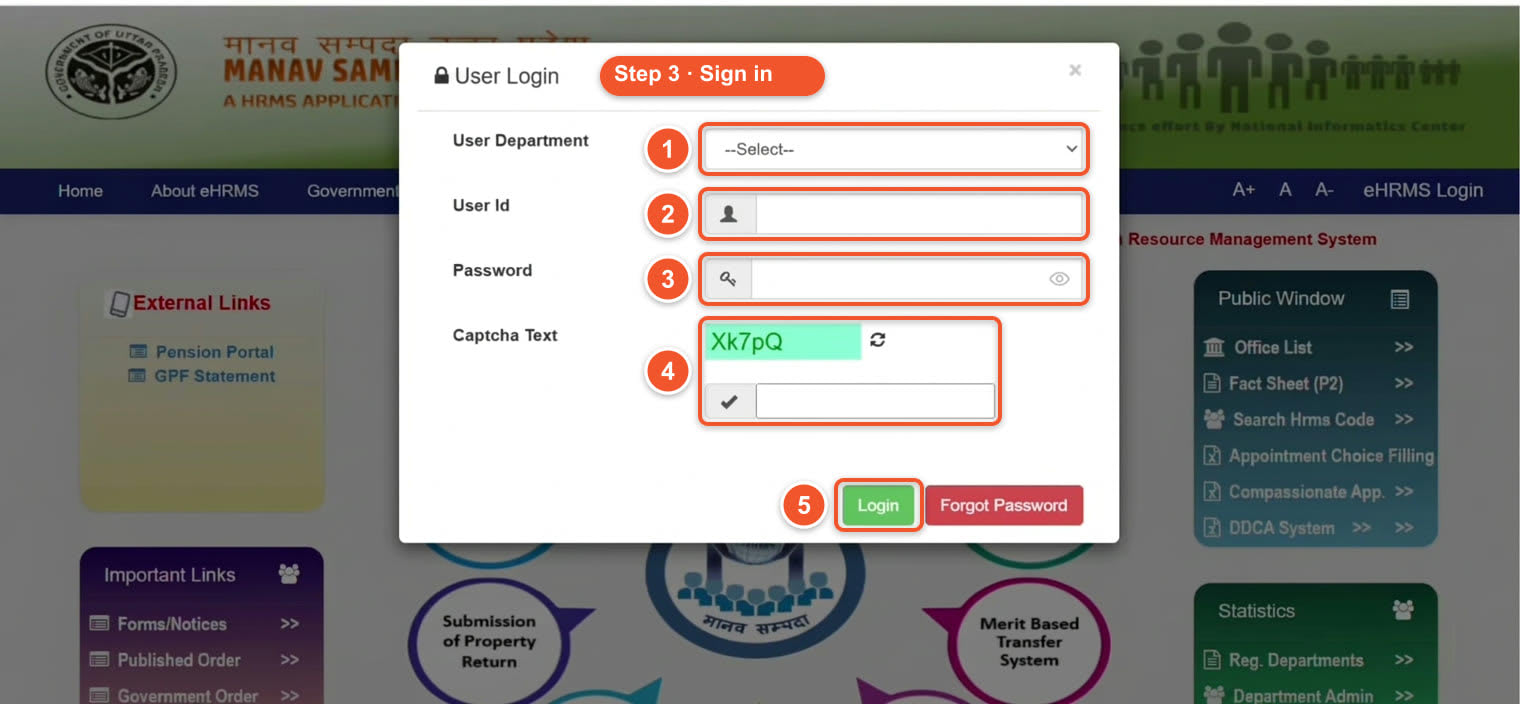
Logging in takes three steps. They are the same three as steps 1 to 3 in Part 1 of the leave section below, which has a picture for each.
- Select your state (step 1).
- Click eHRMS Login (step 2).
- Log in with your department, user ID and password (step 3).
The only login guide I could read is the UP portal guide on Freshersnow, from November 2020. Your screens may look different now.
Forgot your password?
- Use the Forgot Password button on the login page, the one in step 3. It is there only. I found no separate official page on password resets, OTP failures or locked accounts.
- If that does not work, ask your DDO's office or your department's HRMS cell to look at your account.
- Give them your department, your user ID and the exact message on your screen.
I could not confirm that this is the official route, so if they send you elsewhere, follow them.
Apply for leave and track it
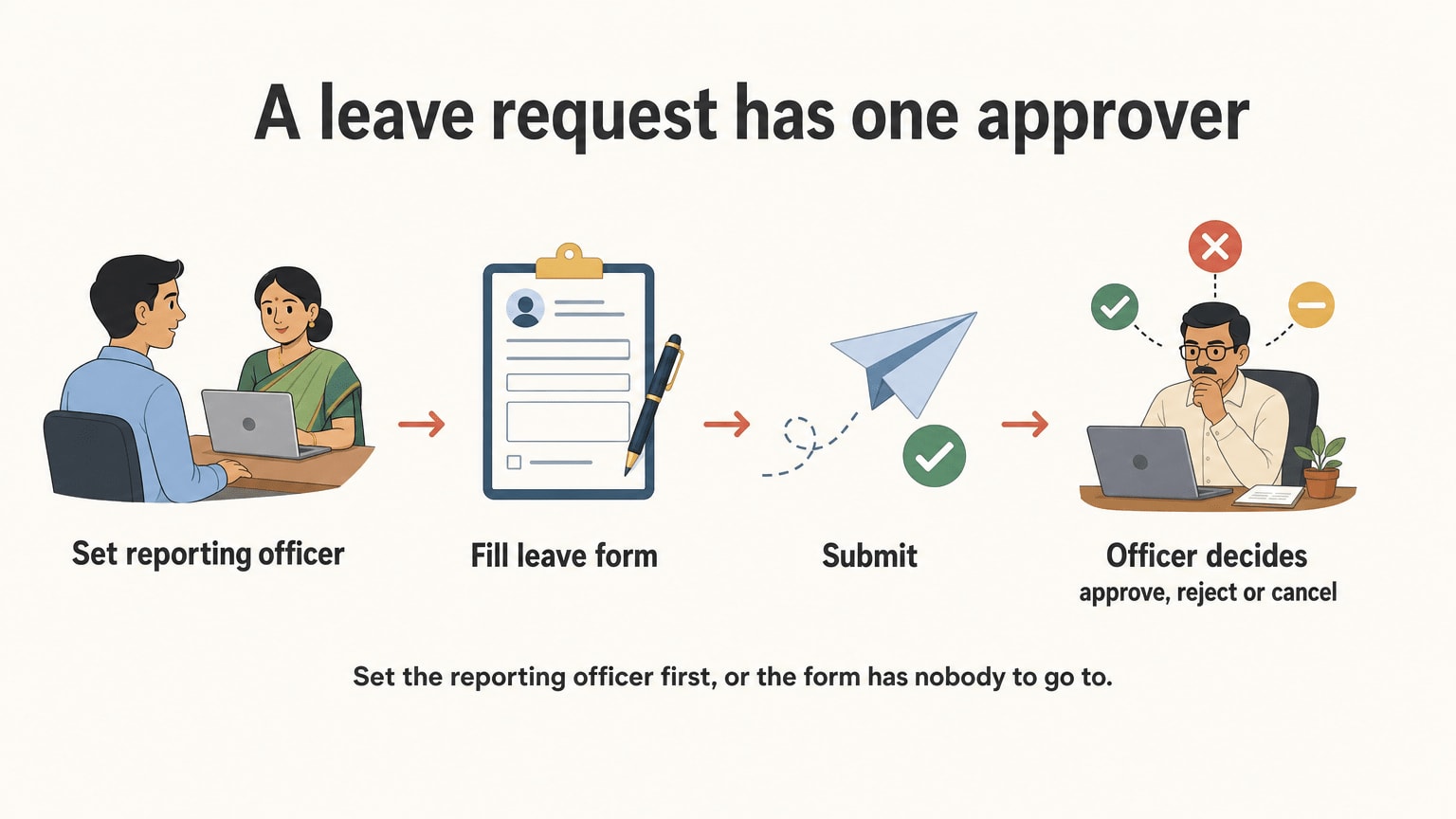
NIC's page says an employee applies to the reporting officer, who can approve, reject or cancel it. The UP guide adds one step people miss: you need a reporting officer set up before you can apply. Without one, the leave form has nobody to go to.
Then you enter the leave type, dates, number of days, reason and address during leave, and submit. The guide says the result is sent to your mobile number.
Here are the steps, nine in all. I am using Uttar Pradesh as the example. I have not opened a state portal myself, so these come from the team's own walk-through and the names may differ on your screen. Where they do, trust your screen. Before you start, check that a reporting officer is set for you.
Part 1: Log in (steps 1 to 3)
- Select your state. In this example, that is Uttar Pradesh.
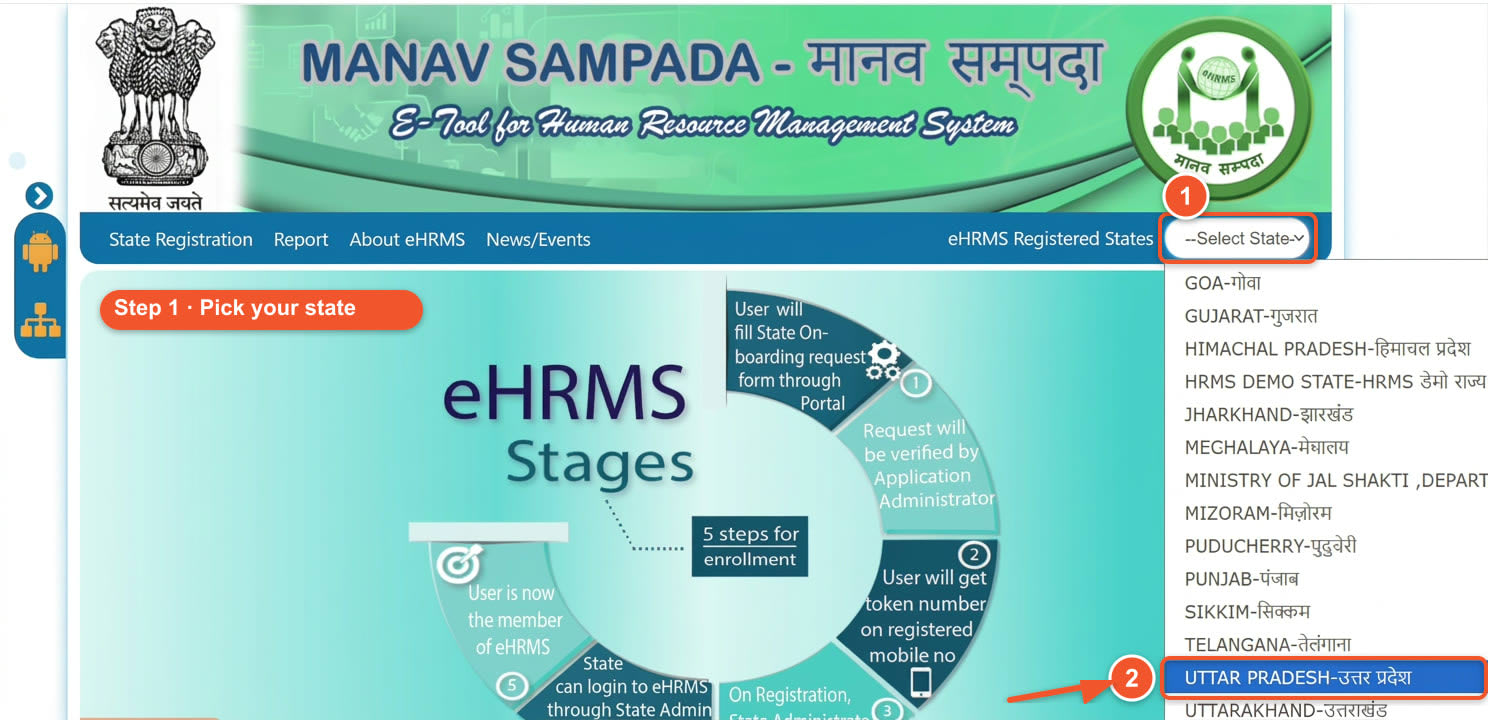
- Click on eHRMS Login.
- Log in with your department, user ID and password.
Part 2: Apply for leave (steps 4 to 9)
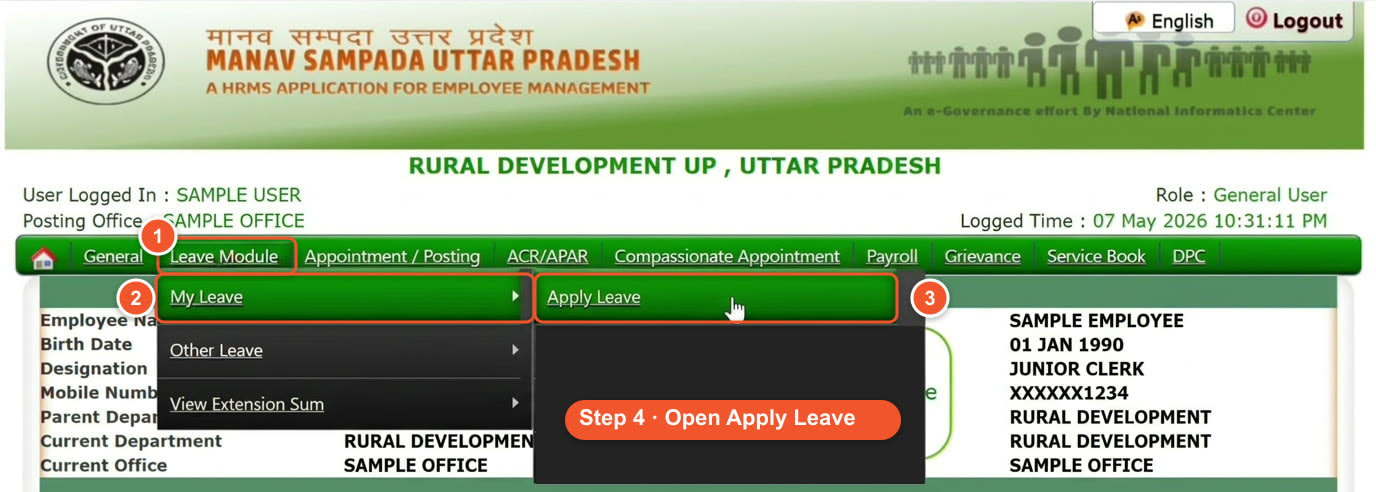
- Open the leave module, go to My Leave, and click Apply Leave.
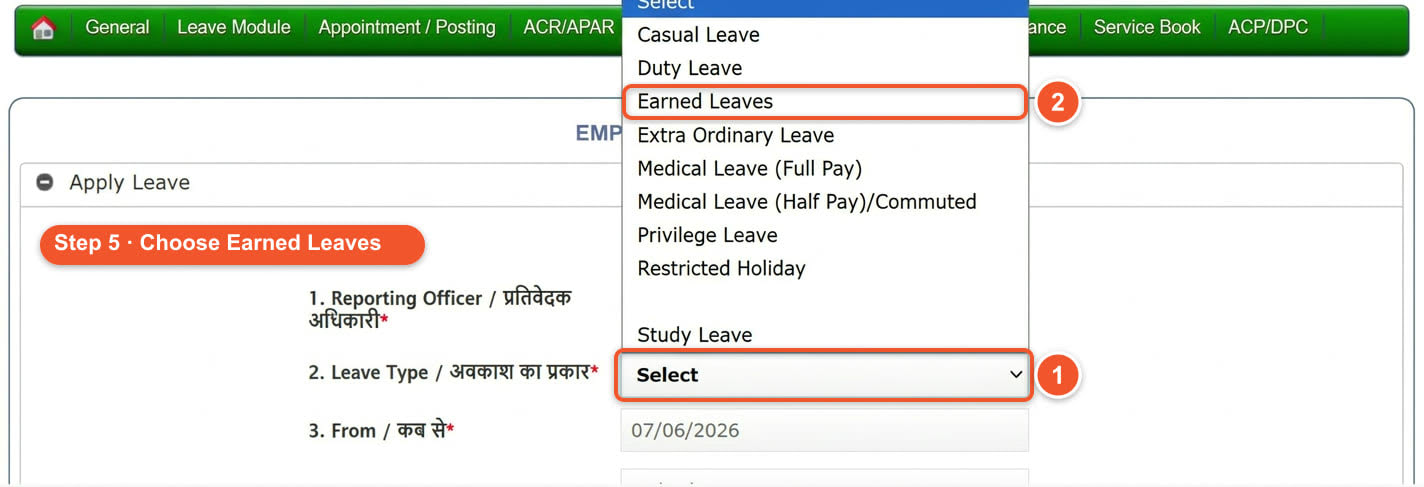
- Select the leave type. For example, earned leave. A video on earned leave is below.
- Pick the first day and the last day of your leave. The number of days follows from those dates.
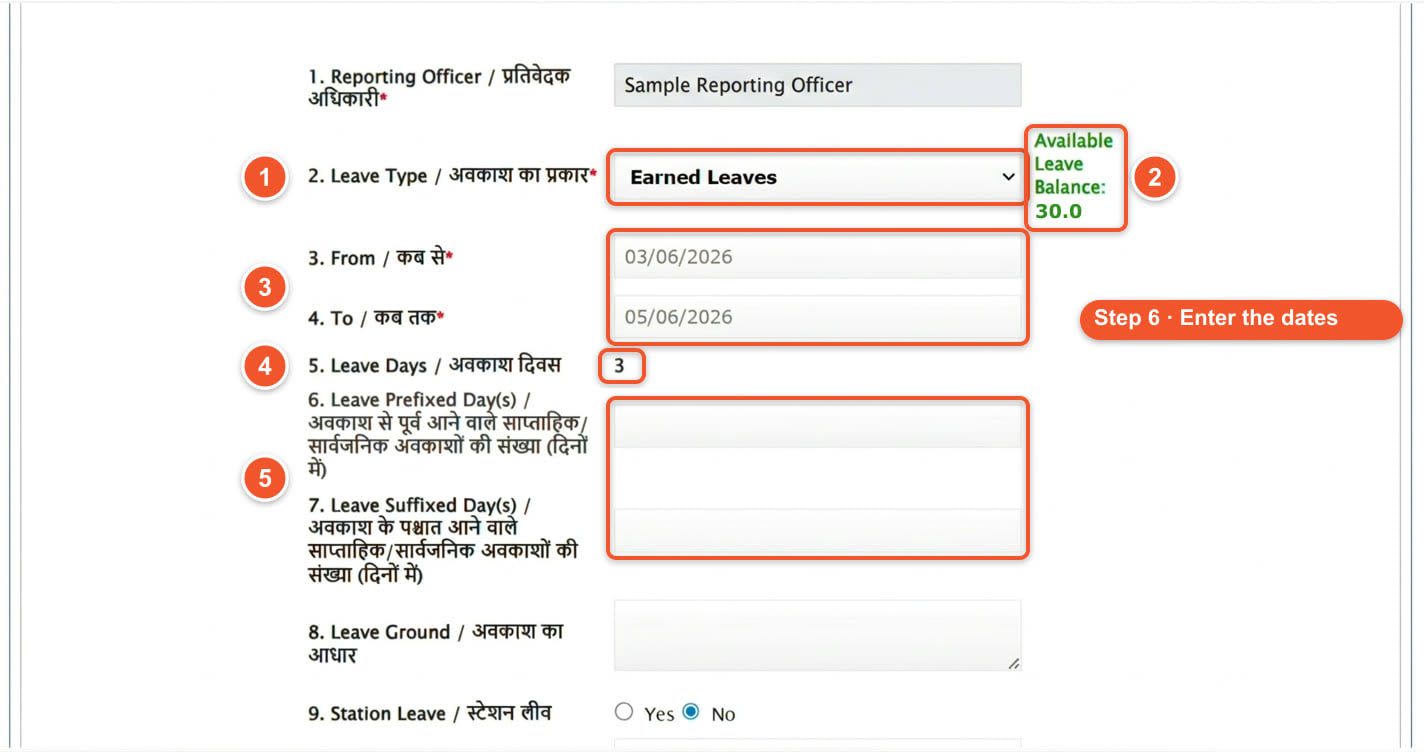
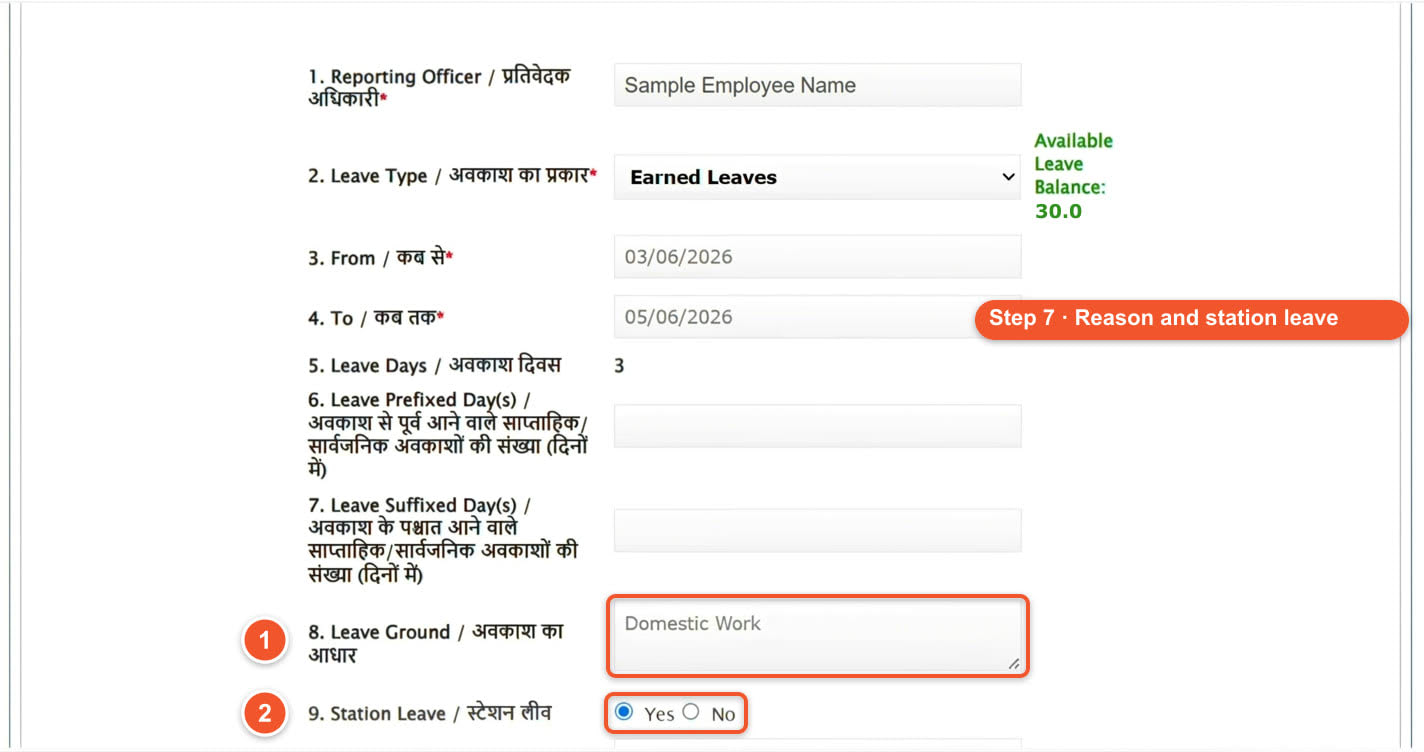
- Write the reason for your leave. Then answer the station leave question with Yes or No. Station leave means you will be away from the town where you are posted, so say Yes only if that is true.
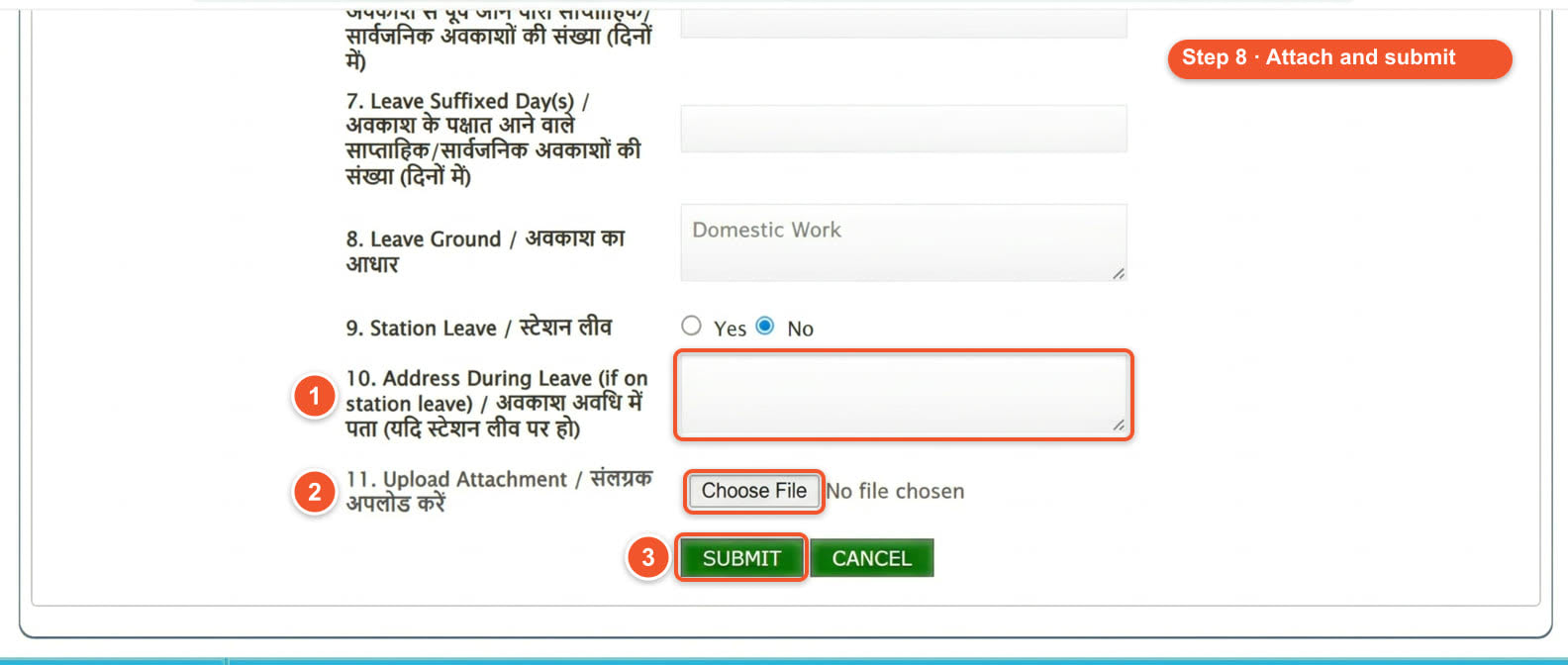
- If the form asks for an attachment, upload it. Skip this if it does not apply to you. Then click submit.
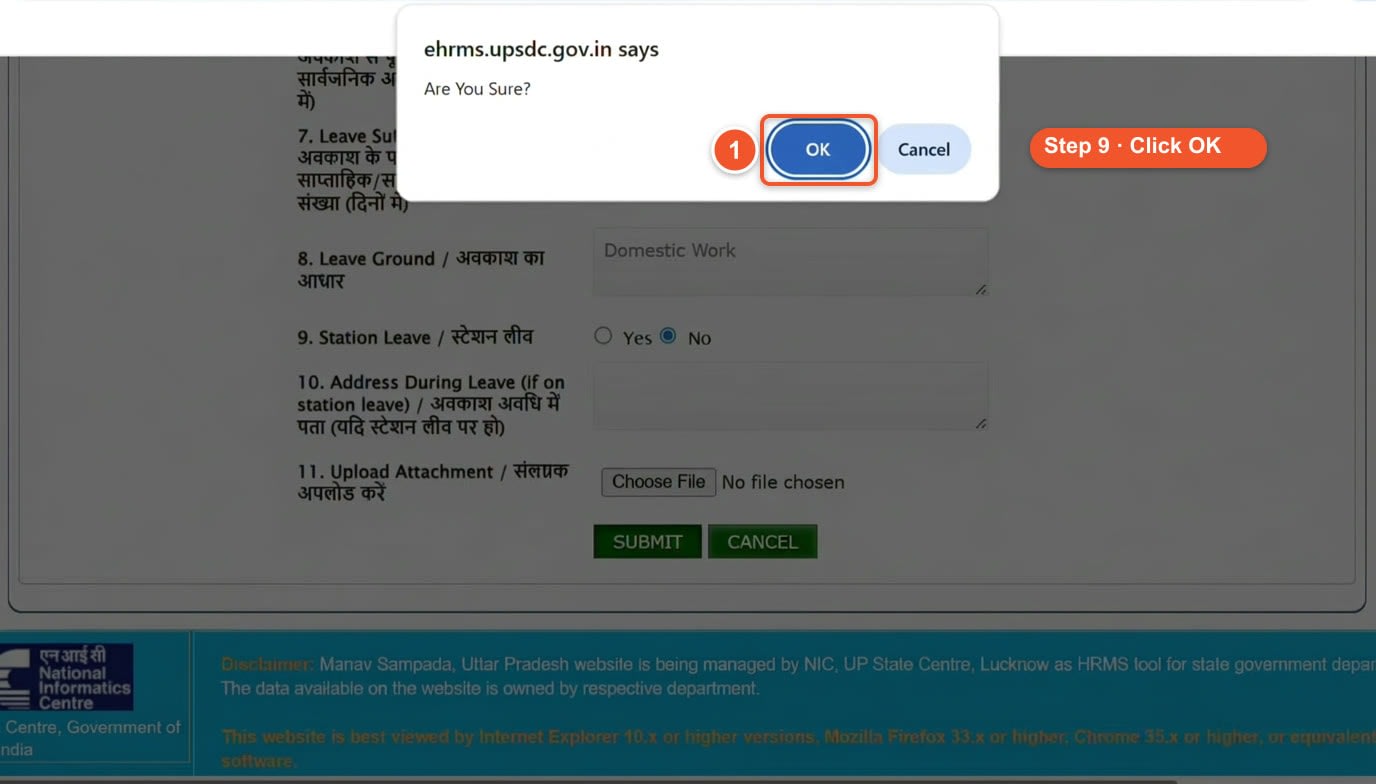
- Confirm and submit. The UP guide says the result is sent to your mobile number. Your reporting officer then approves, rejects or cancels it.
Here is a video on applying for earned leave. It is not ours. It was made by Sarkari Gyan, a YouTube channel, and all credit for it goes to them. Watch it on their channel using the link under the video. I could not watch it or get a transcript, so the steps above do not come from it. Check them against what it shows and your own screen.

Part 3: Track your request
That is the whole chain I can confirm: you, then your reporting officer. I found no official timing for each stage, so I won't quote one. If a request sits for days, the reporting officer's inbox is the first place to look.
The e-Service Book
NIC says complete service book information is held in Manav Sampada. It covers personal details, family, education and training, and service history. The same page lists transfer and promotion orders, joining and relieving orders, confidential reports, the Annual Property Return and an Android app.
I could not confirm how to correct a wrong entry. That route, and who signs it off, wasn't on any page I could read. Ask your DDO first, and keep a copy of the paper that proves the right value, such as an order or a certificate.
Fix the problem: a short guide
Common problems and the first thing to try
| What you see | First try |
|---|---|
| Page won't load, or a certificate warning | Try later, or another browser. Don't click through a warning on a login page |
| Wrong department in the list | Ask your DDO which department your account sits under |
| Leave stuck | Check a reporting officer is set |
| Wrong service book entry | Take the proof paper to your DDO |
These are first tries from the patterns above, not a help page.
Using these records for a home loan
A lender asking about a salaried borrower looks at the person, mainly income and credit history. Ask the lender which papers it wants, because lists differ. I could not confirm that payslips can be downloaded from Manav Sampada, so check your own state's screen before you count on it.

What your service record can do for a loan file
Manav Sampada does not give you a loan, and it is not a lender's system. What it gives you is a clean record of your own service. A loan file is a set of papers that must agree with each other, so that record is worth checking before you apply.
Open your e-Service Book and compare it with your ID, your PAN and your payslip. Look at four things:
- Your name, spelled the same way everywhere.
- Your date of birth.
- Your date of joining and your current designation.
- Your posting history, so you can explain any gaps or transfers if a lender asks.
A small mismatch, such as a different spelling or a wrong joining date, is the kind of thing that makes a lender stop and ask questions. Fixing it takes time, and I could not confirm the correction route (see above). So find it before you have a property and a booking amount riding on it, not after.
Government service also tends to look steady to a lender, because the employer is a department and the job is permanent. I can't say how any one lender weighs that, and none of them promise anything for it. Ask each lender how it treats your kind of employment.
Two things are worth doing while you are logged in:
- Note the papers that prove your service, such as appointment, confirmation and transfer orders. Keep scans in one folder.
- Check your own screen for what else you can download. Whether a payslip or a salary certificate is available depends on your state and your department, so do not assume it. If it is not there, your DDO's office is the one to ask.
Your credit history is separate from all of this. It sits with the credit bureaus, not in your HR record. Pull your report first and read it line by line. These two posts show how: Free CIBIL Score Check and CIBIL Report: How to Read It and Fix Errors.
When the records agree and you know your score, you can work out the monthly payment you can carry. The loan EMI calculator post compares 20, 25 and 30 year tenures. Butter Money has no part in Manav Sampada or any state portal, and it does not see your service record.
Frequently asked questions
What is Manav Sampada?
It is the eHRMS, an online HR system for government employees. NIC's page says the Himachal Pradesh centre developed it, and several states run their own version.
How do I log in to Manav Sampada?
Open your state's portal (for UP, ehrms.upsdc.gov.in), choose the eHRMS login, select your department, then enter your user ID, password and captcha.
How do I reset a forgotten password?
Use the Forgot Password button on the login page. It is there only, and I found no separate official page on this. If it does not work, ask your DDO's office or your department's HRMS cell.
How do I apply for leave and track it?
Set a reporting officer, open online leave, enter the type, dates and reason, and submit. Per NIC, the reporting officer approves, rejects or cancels it.
How do I view or correct my e-Service Book?
You can view it after login. I could not confirm the correction route, so ask your DDO.
Can Manav Sampada help me get a home loan?
Not directly. It is your HR record, not a loan tool. But your e-Service Book lets you check that your name, date of birth, joining date and designation match your other papers before a lender sees them. A lender decides on your income and credit history, and lists of papers differ, so ask the lender.


